Assign unallocated transactions to the right dimension item by dragging rows on a report, from the Actions menu or in the Label panel, and optionally create a rule for future transactions.
You can enrich your accounting data for management reporting directly on a report. Labeling assigns transactions to a dimension item, for example moving a cost from Unassigned to the Sales & marketing department. The report then shows the cost in the right place.
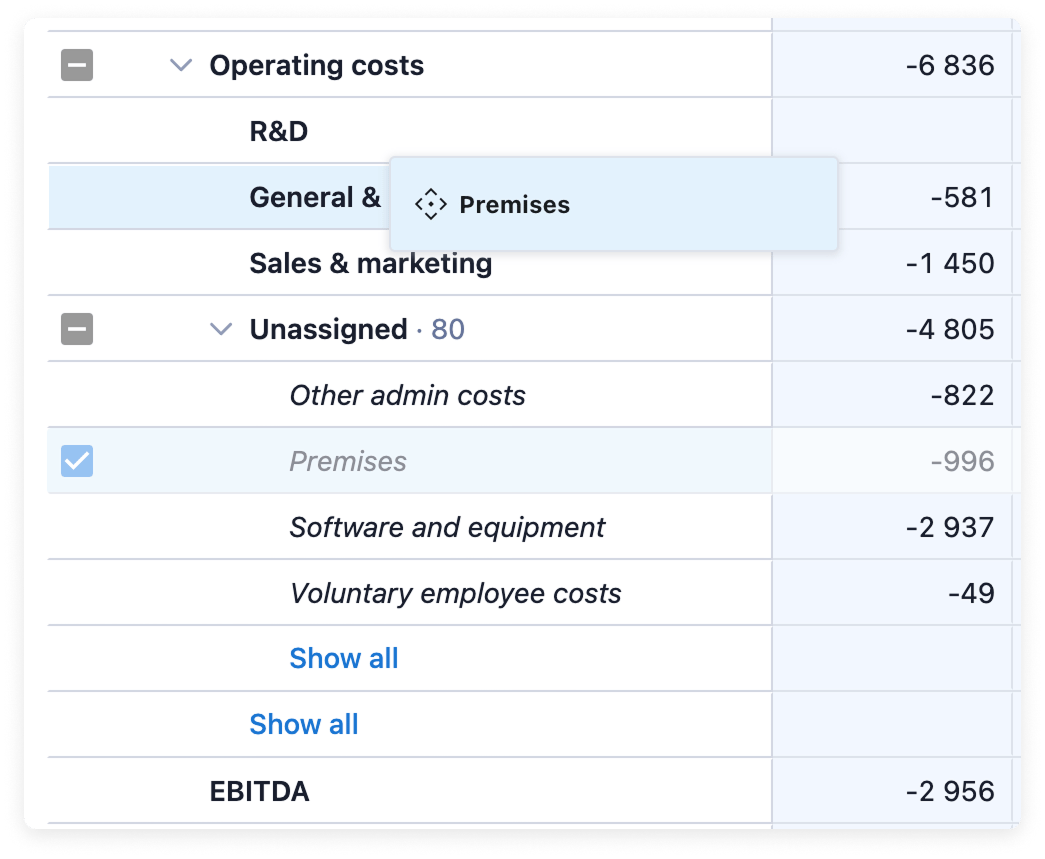
Open a report that shows the dimension, with the unallocated transactions under Unassigned.
Select one or more rows.
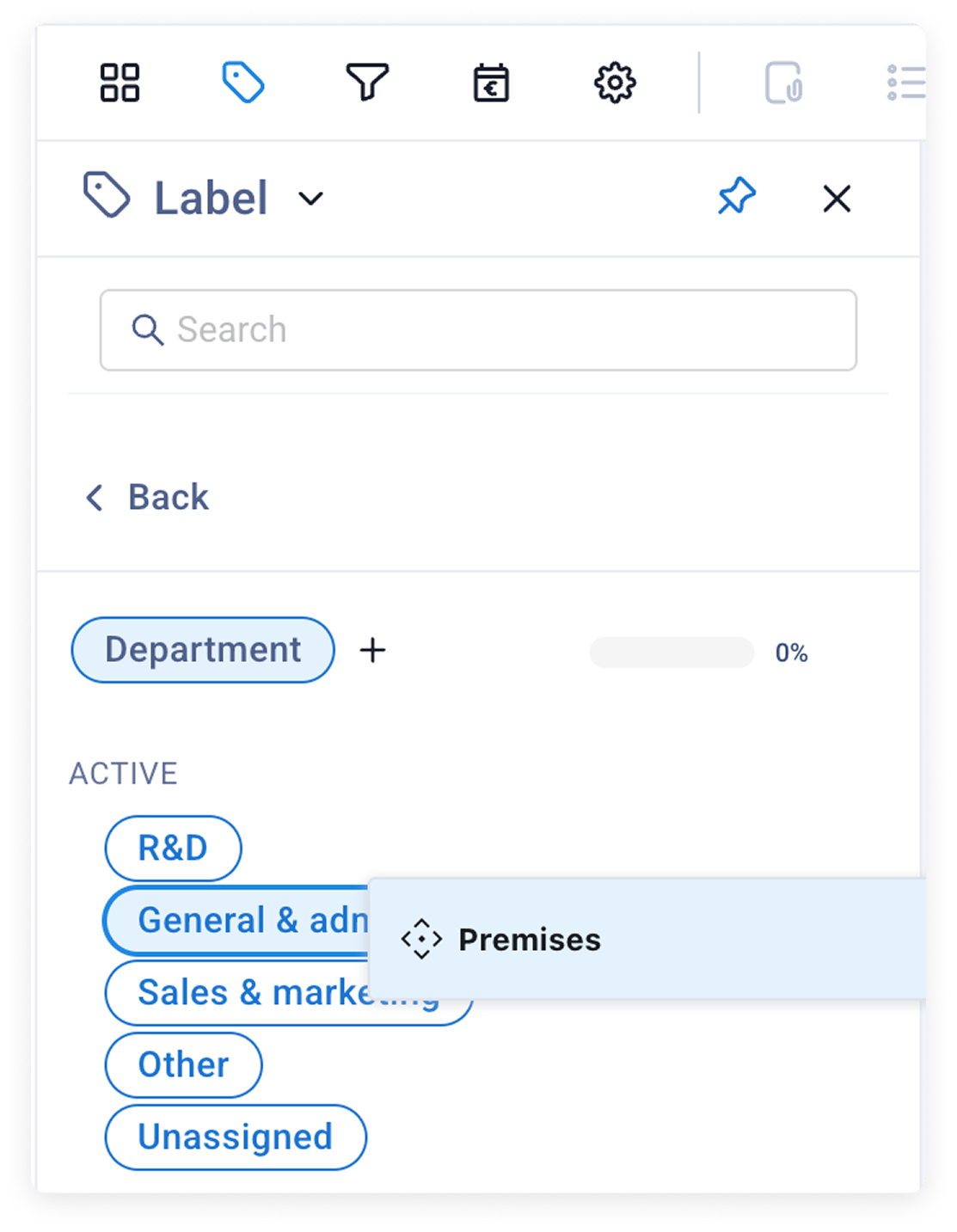
Drag the selected rows onto the dimension item you want. The Label window opens.
Check the rows under Source and the dimension items under Target. Use Add dimension label to add another dimension, or remove rows and targets you don’t want.
To label future transactions the same way, turn on Rule and choose All existing and future or Starting from a date.
Click Apply.
Hold Alt while you drop to label straight away without the Label window.
By default the report refreshes right after you label. Labeled rows then move under the selected dimension item.If you label many rows in a row, you can delay the refresh. Open Settings from the account menu, select Behavior and turn on Delay refresh under Labeling. Labeled rows are then greyed out and marked with a price tag icon until you click Update in the top bar. In the same place, Skip confirmation labels without the Label window every time.
Rules you create while labeling are listed on the Labeling rules page. In the Label window, click Rules view to open it in a new browser tab. See Automate labeling with rules.
{"docsConfig":{"theme":"mint","$schema":"https://mintlify.com/docs.json","name":"Caleido","colors":{"primary":"#1060F7","light":"#E7EFFE","dark":"#09092C"},"logo":{"light":"https://mintcdn.com/caleidooy/Le12g7aQdgT8OSMq/images/Caleido_logo.png?fit=max\u0026auto=format\u0026n=Le12g7aQdgT8OSMq\u0026q=85\u0026s=b1467576e84353d19e25dbd1dacd8e77","dark":"https://mintcdn.com/caleidooy/Le12g7aQdgT8OSMq/images/Caleido_logo.png?fit=max\u0026auto=format\u0026n=Le12g7aQdgT8OSMq\u0026q=85\u0026s=b1467576e84353d19e25dbd1dacd8e77"},"favicon":"https://mintcdn.com/caleidooy/ovXr5CsxQMPJpbb5/images/Caleido_favicon.png?fit=max\u0026auto=format\u0026n=ovXr5CsxQMPJpbb5\u0026q=85\u0026s=95e60e60eec50fdfc3b3c1f7b1a379e1","navbar":{"links":[{"href":"https://caleido.io","label":"caleido.io"}],"primary":{"type":"button","label":"Log in to Caleido","href":"https://app.caleido.io"}},"footer":{"socials":{"website":"https://caleido.io"}},"styling":{"latex":false},"contextual":{"options":["copy","view","chatgpt","claude","perplexity","mcp","cursor","vscode"],"display":"header"},"navigation":{"languages":[{"language":"en","default":true,"href":""},{"language":"fi","navbar":{"links":[{"href":"https://caleido.io","label":"caleido.io"}],"primary":{"type":"button","label":"Kirjaudu Caleidoon","href":"https://app.caleido.io"}},"href":"fi"}]}},"deployment":{"deploymentMetadataValue":{"subdomain":"caleidooy","hasAudioNarration":false,"actualSubdomain":"caleidooy","customDomains":["support.caleido.io"],"gitSource":{"type":"github","owner":"caleido-io","repo":"docs","deployBranch":"main","contentDirectory":"","isPrivate":true,"mountPath":"","label":""},"chroma":{"liveDeploymentHistoryId":"6adf925a2ea4f8f6aa2675ed","collectionId":"e5b61c2d-b01e-4519-95f0-34ab59ae15d1","schemaVersion":"v3","latestBuiltDeploymentHistoryId":"6adf925a2ea4f8f6aa2675ed"},"entitlements":{"AI_CHAT":{"status":"ENABLED"},"WEB_MCP":{"status":"ENABLED"},"NARRATION":{"status":"ENABLED"}},"buildId":"6adf925a2ea4f8f6aa2675ed","clientVersion":"0.0.4044","searchFilterCounts":[{"language":"en","tag":"Documentation","count":41},{"language":"fi","tag":"Ohjeet","count":41},{"language":"en","tag":"Budgeting","count":11},{"language":"fi","tag":"Budjetointi","count":11},{"language":"en","tag":"Changelog","count":10},{"language":"en","tag":"Releases","count":10},{"language":"fi","tag":"Muutosloki","count":10},{"language":"fi","tag":"Julkaisut","count":10},{"language":"en","tag":"Reporting","count":8},{"language":"fi","tag":"Raportointi","count":8},{"language":"en","tag":"Get started","count":5},{"language":"fi","tag":"Aloitus","count":5},{"language":"en","tag":"Concepts","count":4},{"language":"fi","tag":"Käsitteet","count":4},{"language":"en","tag":"Cash flow","count":2},{"language":"en","tag":"Dimensions","count":2},{"language":"en","tag":"Settings","count":2},{"language":"fi","tag":"Kassavirta","count":2},{"language":"fi","tag":"Dimensiot","count":2},{"language":"fi","tag":"Asetukset","count":2}]},"assistantConfig":{"enableAskAiButton":false,"enableStarterQuestions":false,"enableContextualStarterQuestions":false,"enableAskAiSearchBar":true,"deflection":{"enabled":true,"email":"support@caleido.io","showHelpButton":true}},"basePath":"","hasChatPermissions":true,"hasWebMcpPermissions":true,"toggles":[{"name":"kill-isr","enabled":true,"variant":{"name":"disabled","enabled":false,"feature_enabled":true},"impressionData":false},{"name":"agent-mintlify-slack","enabled":true,"variant":{"name":"disabled","enabled":false,"feature_enabled":true},"impressionData":false},{"name":"agent-integrations-settings","enabled":true,"variant":{"name":"disabled","enabled":false,"feature_enabled":true},"impressionData":false},{"name":"automations-pr-grouping","enabled":true,"variant":{"name":"disabled","enabled":false,"feature_enabled":true},"impressionData":false},{"name":"custom-prefix","enabled":true,"variant":{"name":"disabled","enabled":false,"feature_enabled":true},"impressionData":false},{"name":"analytics-v7","enabled":true,"variant":{"name":"disabled","enabled":false,"feature_enabled":true},"impressionData":false},{"name":"user-flows-analytics","enabled":true,"variant":{"name":"disabled","enabled":false,"feature_enabled":true},"impressionData":false},{"name":"no-publish-flow","enabled":true,"variant":{"name":"disabled","enabled":false,"feature_enabled":true},"impressionData":false},{"name":"workos-onboarding","enabled":true,"variant":{"name":"disabled","enabled":false,"feature_enabled":true},"impressionData":false},{"name":"llms-txt-v2","enabled":true,"variant":{"name":"disabled","enabled":false,"feature_enabled":true},"impressionData":false},{"name":"snapshot-serving-live","enabled":true,"variant":{"name":"disabled","enabled":false,"feature_enabled":true},"impressionData":false},{"name":"stripTemperatureMiddleware","enabled":true,"variant":{"name":"disabled","enabled":false,"feature_enabled":true},"impressionData":false},{"name":"support-platform-pylon-zendesk","enabled":true,"variant":{"name":"disabled","enabled":false,"feature_enabled":true},"impressionData":false},{"name":"snapshot-serving","enabled":true,"variant":{"name":"disabled","enabled":false,"feature_enabled":true},"impressionData":false},{"name":"instant-rollback","enabled":true,"variant":{"name":"disabled","enabled":false,"feature_enabled":true},"impressionData":false},{"name":"granular-notifications-server","enabled":true,"variant":{"name":"disabled","enabled":false,"feature_enabled":true},"impressionData":false},{"name":"granular-notifications","enabled":true,"variant":{"name":"disabled","enabled":false,"feature_enabled":true},"impressionData":false},{"name":"automations-fable","enabled":true,"variant":{"name":"disabled","enabled":false,"feature_enabled":true},"impressionData":false},{"name":"fixed-ai-action-pricing","enabled":true,"variant":{"name":"disabled","enabled":false,"feature_enabled":true},"impressionData":false},{"name":"automation-resolve-merge-conflict","enabled":true,"variant":{"name":"disabled","enabled":false,"feature_enabled":true},"impressionData":false},{"name":"scoped-publishing","enabled":true,"variant":{"name":"disabled","enabled":false,"feature_enabled":true},"impressionData":false},{"name":"mintql","enabled":true,"variant":{"name":"disabled","enabled":false,"feature_enabled":true},"impressionData":false},{"name":"page-level-analytics","enabled":true,"variant":{"name":"disabled","enabled":false,"feature_enabled":true},"impressionData":false},{"name":"editor-version-history-v2","enabled":true,"variant":{"name":"disabled","enabled":false,"feature_enabled":true},"impressionData":false},{"name":"billing-page-v2","enabled":true,"variant":{"name":"disabled","enabled":false,"feature_enabled":true},"impressionData":false},{"name":"full-page-search","enabled":true,"variant":{"name":"disabled","enabled":false,"feature_enabled":true},"impressionData":false},{"name":"workspace-projects","enabled":true,"variant":{"name":"disabled","enabled":false,"feature_enabled":true},"impressionData":false},{"name":"assistant-v5","enabled":true,"variant":{"name":"disabled","enabled":false,"feature_enabled":true},"impressionData":false},{"name":"byok-sep-25","enabled":true,"variant":{"name":"disabled","enabled":false,"feature_enabled":true},"impressionData":false},{"name":"fork-pr-previews","enabled":true,"variant":{"name":"disabled","enabled":false,"feature_enabled":true},"impressionData":false},{"name":"revalidation-jwt","enabled":true,"variant":{"name":"disabled","enabled":false,"feature_enabled":true},"impressionData":false},{"name":"vite-origin","enabled":true,"variant":{"name":"disabled","enabled":false,"feature_enabled":true},"impressionData":false},{"name":"billing-updated-9-15","enabled":true,"variant":{"name":"disabled","enabled":false,"feature_enabled":true},"impressionData":false},{"name":"workos-sso-scim","enabled":true,"variant":{"name":"disabled","enabled":false,"feature_enabled":true},"impressionData":false},{"name":"hobby-abuse-scan","enabled":true,"variant":{"name":"disabled","enabled":false,"feature_enabled":true},"impressionData":false},{"name":"dashboard-inbox","enabled":true,"variant":{"name":"disabled","enabled":false,"feature_enabled":true},"impressionData":false},{"name":"workos-signup","enabled":true,"variant":{"name":"disabled","enabled":false,"feature_enabled":true},"impressionData":false},{"name":"turbopuffer-dual-write","enabled":true,"variant":{"name":"disabled","enabled":false,"feature_enabled":true},"impressionData":false},{"name":"workos-enabled","enabled":true,"variant":{"name":"disabled","enabled":false,"feature_enabled":true},"impressionData":false},{"name":"approve-review-flow","enabled":true,"variant":{"name":"disabled","enabled":false,"feature_enabled":true},"impressionData":false},{"name":"sso-setup-deadline-banner","enabled":true,"variant":{"name":"disabled","enabled":false,"feature_enabled":true},"impressionData":false}],"googleFontsInlined":false},"customCss":[{"filePath":"style.css","content":"#content-side-layout{display:none}#content-area{max-width:80%}[data-component-name=language-switcher] [data-component-name=nav-dropdown-trigger]::after,nav-dropdown-trigger[aria-label*=Language i]::after,nav-dropdown-trigger[aria-label*=language i]::after{content:\"\";display:inline-block;width:1rem;height:1rem;margin-left:.4rem;vertical-align:middle;background-color:currentColor;-webkit-mask:url(\"data:image/svg+xml;utf8,\u003csvg xmlns='http://www.w3.org/2000/svg' viewBox='0 0 24 24' fill='none' stroke='currentColor' stroke-width='2' stroke-linecap='round' stroke-linejoin='round'>\u003ccircle cx='12' cy='12' r='10'/>\u003cpath d='M2 12h20'/>\u003cpath d='M12 2a15.3 15.3 0 0 1 4 10 15.3 15.3 0 0 1-4 10 15.3 15.3 0 0 1-4-10 15.3 15.3 0 0 1 4-10z'/>\u003c/svg>\") no-repeat center/contain;mask:url(\"data:image/svg+xml;utf8,\u003csvg xmlns='http://www.w3.org/2000/svg' viewBox='0 0 24 24' fill='none' stroke='currentColor' stroke-width='2' stroke-linecap='round' stroke-linejoin='round'>\u003ccircle cx='12' cy='12' r='10'/>\u003cpath d='M2 12h20'/>\u003cpath d='M12 2a15.3 15.3 0 0 1 4 10 15.3 15.3 0 0 1-4 10 15.3 15.3 0 0 1-4-10 15.3 15.3 0 0 1 4-10z'/>\u003c/svg>\") no-repeat center/contain}"}],"page":{"pagePath":"guides/dimensions/label-data","slug":"/guides/dimensions/label-data","pageMetadata":{"title":"Label data on a report","description":"Assign unallocated transactions to the right dimension item by dragging rows on a report, from the Actions menu or in the Label panel, and optionally create a rule for future transactions.","href":"/guides/dimensions/label-data"},"description":{"compiledSource":"\"use strict\";\nconst {jsx: _jsx} = arguments[0];\nconst {useMDXComponents: _provideComponents} = arguments[0];\nfunction _createMdxContent(props) {\n const _components = {\n p: \"p\",\n ..._provideComponents(),\n ...props.components\n };\n return _jsx(_components.p, {\n children: \"Assign unallocated transactions to the right dimension item by dragging rows on a report, from the Actions menu or in the Label panel, and optionally create a rule for future transactions.\"\n });\n}\nfunction MDXContent(props = {}) {\n const {wrapper: MDXLayout} = {\n ..._provideComponents(),\n ...props.components\n };\n return MDXLayout ? _jsx(MDXLayout, {\n ...props,\n children: _jsx(_createMdxContent, {\n ...props\n })\n }) : _createMdxContent(props);\n}\nreturn {\n default: MDXContent\n};\n","frontmatter":{},"scope":{}},"pageType":"default","mdx":{"mdxSource":{"compiledSource":"\"use strict\";const{Fragment:_Fragment,jsx:_jsx,jsxs:_jsxs}=arguments[0];const{useMDXComponents:_provideComponents}=arguments[0];function _createMdxContent(props){const _components={a:`a`,li:`li`,ol:`ol`,p:`p`,strong:`strong`,ul:`ul`,..._provideComponents(),...props.components},{Heading,OptimizedImage,Tip}=_components;if(!Heading)_missingMdxReference(`Heading`,true);if(!OptimizedImage)_missingMdxReference(`OptimizedImage`,true);if(!Tip)_missingMdxReference(`Tip`,true);return _jsxs(_Fragment,{children:[_jsxs(_components.p,{children:[`You can enrich your accounting data for management reporting directly on a report. Labeling assigns transactions to a dimension item, for example moving a cost from `,_jsx(_components.strong,{children:`Unassigned`}),` to the Sales \u0026 marketing department. The report then shows the cost in the right place.`]}),`\n`,_jsx(Heading,{level:`2`,id:`label-by-dragging-rows-on-a-report`,children:`Label by dragging rows on a report`}),`\n`,_jsxs(_components.ol,{children:[`\n`,_jsxs(_components.li,{children:[`Open a report that shows the dimension, with the unallocated transactions under `,_jsx(_components.strong,{children:`Unassigned`}),`.`]}),`\n`,_jsx(_components.li,{children:`Select one or more rows.`}),`\n`,_jsxs(_components.li,{children:[`Drag the selected rows onto the dimension item you want. The `,_jsx(_components.strong,{children:`Label`}),` window opens.`]}),`\n`,_jsxs(_components.li,{children:[`Check the rows under `,_jsx(_components.strong,{children:`Source`}),` and the dimension items under `,_jsx(_components.strong,{children:`Target`}),`. Use `,_jsx(_components.strong,{children:`Add dimension label`}),` to add another dimension, or remove rows and targets you don’t want.`]}),`\n`,_jsxs(_components.li,{children:[`To label future transactions the same way, turn on `,_jsx(_components.strong,{children:`Rule`}),` and choose `,_jsx(_components.strong,{children:`All existing and future`}),` or `,_jsx(_components.strong,{children:`Starting from`}),` a date.`]}),`\n`,_jsxs(_components.li,{children:[`Click `,_jsx(_components.strong,{children:`Apply`}),`.`]}),`\n`]}),`\n`,_jsx(OptimizedImage,{src:`https://mintcdn.com/caleidooy/P3wD9skg95GjHu2T/images/dimension-labeling-in-reports.png?fit=max\u0026auto=format\u0026n=P3wD9skg95GjHu2T\u0026q=85\u0026s=8fabf747d839838aae559ec5e5f40bf7`,alt:`Dragging rows onto a dimension item on a report`,\"data-og-width\":`1045`,width:`1045`,\"data-og-height\":`859`,height:`859`,\"data-path\":`images/dimension-labeling-in-reports.png`,\"data-optimize\":`true`,\"data-opv\":`3`,srcset:`https://mintcdn.com/caleidooy/P3wD9skg95GjHu2T/images/dimension-labeling-in-reports.png?w=280\u0026fit=max\u0026auto=format\u0026n=P3wD9skg95GjHu2T\u0026q=85\u0026s=25159d6f8f2132bc18e0768372676d55 280w, https://mintcdn.com/caleidooy/P3wD9skg95GjHu2T/images/dimension-labeling-in-reports.png?w=560\u0026fit=max\u0026auto=format\u0026n=P3wD9skg95GjHu2T\u0026q=85\u0026s=a9c74e786128c6a6c8e3752020502222 560w, https://mintcdn.com/caleidooy/P3wD9skg95GjHu2T/images/dimension-labeling-in-reports.png?w=840\u0026fit=max\u0026auto=format\u0026n=P3wD9skg95GjHu2T\u0026q=85\u0026s=3a3d5d05b97b6ed372547b3676575be2 840w, https://mintcdn.com/caleidooy/P3wD9skg95GjHu2T/images/dimension-labeling-in-reports.png?w=1100\u0026fit=max\u0026auto=format\u0026n=P3wD9skg95GjHu2T\u0026q=85\u0026s=df53f223a35e1650e83685759ac814d9 1100w, https://mintcdn.com/caleidooy/P3wD9skg95GjHu2T/images/dimension-labeling-in-reports.png?w=1650\u0026fit=max\u0026auto=format\u0026n=P3wD9skg95GjHu2T\u0026q=85\u0026s=6e1d5ff7320cf5767a6ae9ab2a3e068d 1650w, https://mintcdn.com/caleidooy/P3wD9skg95GjHu2T/images/dimension-labeling-in-reports.png?w=2500\u0026fit=max\u0026auto=format\u0026n=P3wD9skg95GjHu2T\u0026q=85\u0026s=965fb70bf0c445e8dbf163fbb7f40424 2500w`}),`\n`,_jsx(Tip,{children:_jsxs(_components.p,{children:[`Hold Alt while you drop to label straight away without the `,_jsx(_components.strong,{children:`Label`}),` window.`]})}),`\n`,_jsx(Heading,{level:`2`,id:`label-from-the-actions-menu`,children:`Label from the Actions menu`}),`\n`,_jsx(_components.p,{children:`When the dimension item you want isn’t visible on the report:`}),`\n`,_jsxs(_components.ol,{children:[`\n`,_jsx(_components.li,{children:`Select the rows you want to label.`}),`\n`,_jsxs(_components.li,{children:[`Open `,_jsx(_components.strong,{children:`Actions`}),` and select `,_jsx(_components.strong,{children:`Modify`}),` > `,_jsx(_components.strong,{children:`Label selected…`}),`. You can also right-click the rows and select `,_jsx(_components.strong,{children:`Label selected…`}),`.`]}),`\n`,_jsxs(_components.li,{children:[`In the `,_jsx(_components.strong,{children:`Label`}),` window, click `,_jsx(_components.strong,{children:`Add dimension label`}),` and pick the dimension item.`]}),`\n`,_jsxs(_components.li,{children:[`Click `,_jsx(_components.strong,{children:`Apply`}),`.`]}),`\n`]}),`\n`,_jsx(Heading,{level:`2`,id:`label-in-the-label-panel`,children:`Label in the Label panel`}),`\n`,_jsxs(_components.ol,{children:[`\n`,_jsxs(_components.li,{children:[`Open `,_jsx(_components.strong,{children:`Actions`}),` and select `,_jsx(_components.strong,{children:`Modify`}),` > `,_jsx(_components.strong,{children:`Label panel…`}),`.`]}),`\n`,_jsxs(_components.li,{children:[`In the `,_jsx(_components.strong,{children:`Label`}),` panel, open the dimension you want.`]}),`\n`,_jsx(_components.li,{children:`Drag the selected rows onto the right dimension item.`}),`\n`,_jsxs(_components.li,{children:[`Confirm in the `,_jsx(_components.strong,{children:`Label`}),` window and click `,_jsx(_components.strong,{children:`Apply`}),`.`]}),`\n`]}),`\n`,_jsx(OptimizedImage,{src:`https://mintcdn.com/caleidooy/P3wD9skg95GjHu2T/images/dimension-labeling-in-panel.png?fit=max\u0026auto=format\u0026n=P3wD9skg95GjHu2T\u0026q=85\u0026s=90f53ce9f1349f26bd121edc0bde7498`,alt:`Dragging rows onto a dimension item in the Label panel`,\"data-og-width\":`1113`,width:`1113`,\"data-og-height\":`1433`,height:`1433`,\"data-path\":`images/dimension-labeling-in-panel.png`,\"data-optimize\":`true`,\"data-opv\":`3`,srcset:`https://mintcdn.com/caleidooy/P3wD9skg95GjHu2T/images/dimension-labeling-in-panel.png?w=280\u0026fit=max\u0026auto=format\u0026n=P3wD9skg95GjHu2T\u0026q=85\u0026s=d840d03099718337eac7eaad7f83a8f2 280w, https://mintcdn.com/caleidooy/P3wD9skg95GjHu2T/images/dimension-labeling-in-panel.png?w=560\u0026fit=max\u0026auto=format\u0026n=P3wD9skg95GjHu2T\u0026q=85\u0026s=352217858dd89891830c5b769eefddb3 560w, https://mintcdn.com/caleidooy/P3wD9skg95GjHu2T/images/dimension-labeling-in-panel.png?w=840\u0026fit=max\u0026auto=format\u0026n=P3wD9skg95GjHu2T\u0026q=85\u0026s=481e247955d9e65afdb563c798cf86bc 840w, https://mintcdn.com/caleidooy/P3wD9skg95GjHu2T/images/dimension-labeling-in-panel.png?w=1100\u0026fit=max\u0026auto=format\u0026n=P3wD9skg95GjHu2T\u0026q=85\u0026s=4131804d36bab097a9e3f89234272a31 1100w, https://mintcdn.com/caleidooy/P3wD9skg95GjHu2T/images/dimension-labeling-in-panel.png?w=1650\u0026fit=max\u0026auto=format\u0026n=P3wD9skg95GjHu2T\u0026q=85\u0026s=cbf4f72766d63fe013fff30c0beba3c8 1650w, https://mintcdn.com/caleidooy/P3wD9skg95GjHu2T/images/dimension-labeling-in-panel.png?w=2500\u0026fit=max\u0026auto=format\u0026n=P3wD9skg95GjHu2T\u0026q=85\u0026s=8dc44a4b200ae7857a7ac76bfad08f45 2500w`}),`\n`,_jsx(Heading,{level:`2`,id:`when-the-report-updates`,children:`When the report updates`}),`\n`,_jsx(_components.p,{children:`By default the report refreshes right after you label. Labeled rows then move under the selected dimension item.`}),`\n`,_jsxs(_components.p,{children:[`If you label many rows in a row, you can delay the refresh. Open `,_jsx(_components.strong,{children:`Settings`}),` from the account menu, select `,_jsx(_components.strong,{children:`Behavior`}),` and turn on `,_jsx(_components.strong,{children:`Delay refresh`}),` under `,_jsx(_components.strong,{children:`Labeling`}),`. Labeled rows are then greyed out and marked with a price tag icon until you click `,_jsx(_components.strong,{children:`Update`}),` in the top bar. In the same place, `,_jsx(_components.strong,{children:`Skip confirmation`}),` labels without the `,_jsx(_components.strong,{children:`Label`}),` window every time.`]}),`\n`,_jsx(Heading,{level:`2`,id:`manage-rules`,children:`Manage rules`}),`\n`,_jsxs(_components.p,{children:[`Rules you create while labeling are listed on the `,_jsx(_components.strong,{children:`Labeling rules`}),` page. In the `,_jsx(_components.strong,{children:`Label`}),` window, click `,_jsx(_components.strong,{children:`Rules view`}),` to open it in a new browser tab. See `,_jsx(_components.a,{href:`/guides/dimensions/labeling-rules`,children:`Automate labeling with rules`}),`.`]}),`\n`,_jsx(Heading,{level:`2`,id:`related`,children:`Related`}),`\n`,_jsxs(_components.ul,{children:[`\n`,_jsx(_components.li,{children:_jsx(_components.a,{href:`/guides/transactions/general-ledger`,children:`Use the general ledger and journal`})}),`\n`,_jsx(_components.li,{children:_jsx(_components.a,{href:`/guides/dimensions/labeling-rules`,children:`Automate labeling with rules`})}),`\n`]})]})}function MDXContent(props={}){const{wrapper:MDXLayout}={..._provideComponents(),...props.components};return MDXLayout?_jsx(MDXLayout,{...props,children:_jsx(_createMdxContent,{...props})}):_createMdxContent(props)}return{default:MDXContent};function _missingMdxReference(id,component){throw new Error(`Expected `+(component?`component`:`object`)+\" `\"+id+\"` to be defined: you likely forgot to import, pass, or provide it.\")}","frontmatter":{},"scope":{"config":{},"pageMetadata":{"title":"Label data on a report","description":"Assign unallocated transactions to the right dimension item by dragging rows on a report, from the Actions menu or in the Label panel, and optionally create a rule for future transactions.","href":"/guides/dimensions/label-data"}}},"mdxSourceWithNoJs":null},"mdxExtracts":{"tableOfContents":[{"title":"Label by dragging rows on a report","slug":"label-by-dragging-rows-on-a-report","depth":2,"children":[]},{"title":"Label from the Actions menu","slug":"label-from-the-actions-menu","depth":2,"children":[]},{"title":"Label in the Label panel","slug":"label-in-the-label-panel","depth":2,"children":[]},{"title":"When the report updates","slug":"when-the-report-updates","depth":2,"children":[]},{"title":"Manage rules","slug":"manage-rules","depth":2,"children":[]},{"title":"Related","slug":"related","depth":2,"children":[]}],"codeExamples":{}},"jsLinks":[],"subdomain":"caleidooy","siteName":"Caleido","title":"Label data on a report - Caleido","navMaps":{"firstHrefInVersion":{},"firstHrefInLanguage":{"en":{"href":"/guides/dimensions/label-data","matchLevel":0},"fi":{"href":"/fi/guides/dimensions/label-data","matchLevel":1}}},"lastModified":"2026-10-22T06:39:42.340Z","originalFileLocation":"guides/dimensions/label-data.mdx","locale":"en"},"headHtml":"\u003cscript data-mint-head>(function(){var d=document.documentElement,p=null;if(!p){try{p=localStorage.getItem(\"isDarkMode\")}catch(e){}if(p==='true')p='dark';else if(p==='false')p='light';if(p!=='light'\u0026\u0026p!=='dark'\u0026\u0026p!=='system')p=\"system\"}var r=p==='system'?(matchMedia(\"(prefers-color-scheme: dark)\").matches?'dark':'light'):p;d.classList.remove(r==='dark'?'light':'dark');d.classList.add(r);d.setAttribute(\"data-theme-preference\",p)})();\u003c/script>\u003cmeta data-mint-head name=\"description\" content=\"Assign unallocated transactions to the right dimension item by dragging rows on a report, from the Actions menu or in the Label panel, and optionally create a rule for future transactions.\">\u003cmeta data-mint-head name=\"application-name\" content=\"Caleido\">\u003cmeta data-mint-head name=\"generator\" content=\"Mintlify\">\u003clink data-mint-head rel=\"icon\" type=\"image/png\" sizes=\"192x192\" href=\"/mintlify-assets/_mintlify/favicons/caleidooy/_JWiEFcJTweJJ6kq/_generated/favicon/android-chrome-192x192.png\" media=\"(prefers-color-scheme: light)\">\u003clink data-mint-head rel=\"apple-touch-icon\" type=\"image/png\" sizes=\"180x180\" href=\"/mintlify-assets/_mintlify/favicons/caleidooy/_JWiEFcJTweJJ6kq/_generated/favicon/apple-touch-icon.png\">\u003clink data-mint-head rel=\"icon\" type=\"image/png\" sizes=\"16x16\" href=\"/mintlify-assets/_mintlify/favicons/caleidooy/_JWiEFcJTweJJ6kq/_generated/favicon/favicon-16x16.png\" media=\"(prefers-color-scheme: light)\">\u003clink data-mint-head rel=\"icon\" type=\"image/png\" sizes=\"32x32\" href=\"/mintlify-assets/_mintlify/favicons/caleidooy/_JWiEFcJTweJJ6kq/_generated/favicon/favicon-32x32.png\" media=\"(prefers-color-scheme: light)\">\u003clink data-mint-head rel=\"shortcut icon\" type=\"image/x-icon\" href=\"/mintlify-assets/_mintlify/favicons/caleidooy/_JWiEFcJTweJJ6kq/_generated/favicon/favicon.ico\" media=\"(prefers-color-scheme: light)\">\u003clink data-mint-head rel=\"icon\" type=\"image/png\" sizes=\"192x192\" href=\"/mintlify-assets/_mintlify/favicons/caleidooy/_JWiEFcJTweJJ6kq/_generated/favicon-dark/android-chrome-192x192.png\" media=\"(prefers-color-scheme: dark)\">\u003clink data-mint-head rel=\"icon\" type=\"image/png\" sizes=\"16x16\" href=\"/mintlify-assets/_mintlify/favicons/caleidooy/_JWiEFcJTweJJ6kq/_generated/favicon-dark/favicon-16x16.png\" media=\"(prefers-color-scheme: dark)\">\u003clink data-mint-head rel=\"icon\" type=\"image/png\" sizes=\"32x32\" href=\"/mintlify-assets/_mintlify/favicons/caleidooy/_JWiEFcJTweJJ6kq/_generated/favicon-dark/favicon-32x32.png\" media=\"(prefers-color-scheme: dark)\">\u003clink data-mint-head rel=\"shortcut icon\" type=\"image/x-icon\" href=\"/mintlify-assets/_mintlify/favicons/caleidooy/_JWiEFcJTweJJ6kq/_generated/favicon-dark/favicon.ico\" media=\"(prefers-color-scheme: dark)\">\u003cmeta data-mint-head property=\"og:title\" content=\"Label data on a report - Caleido\">\u003cmeta data-mint-head property=\"og:description\" content=\"Assign unallocated transactions to the right dimension item by dragging rows on a report, from the Actions menu or in the Label panel, and optionally create a rule for future transactions.\">\u003cmeta data-mint-head property=\"og:site_name\" content=\"Caleido\">\u003cmeta data-mint-head property=\"og:url\" content=\"https://support.caleido.io/guides/dimensions/label-data\">\u003cmeta data-mint-head property=\"og:type\" content=\"website\">\u003cmeta data-mint-head property=\"og:image\" content=\"https://caleidooy.mintlify.app/_mintlify/api/og/v2?division=Dimensions\u0026amp;title=Label+data+on+a+report\u0026amp;description=Assign+unallocated+transactions+to+the+right+dimension+item+by+dragging+rows+on+a+report%2C+from+the+Actions+menu+or+in+the+Label+panel%2C+and+optionally+create+a+r\u0026amp;theme=a927cd007db00e141f6ab69c\u0026amp;signature=e41bc61f20fae0d87fa077ab855521707f786227c0b2b218432f8a8b9ffdd4d3\">\u003cmeta data-mint-head property=\"og:image:width\" content=\"1200\">\u003cmeta data-mint-head property=\"og:image:height\" content=\"630\">\u003cmeta data-mint-head name=\"twitter:card\" content=\"summary_large_image\">\u003cmeta data-mint-head name=\"twitter:title\" content=\"Label data on a report - Caleido\">\u003cmeta data-mint-head name=\"twitter:description\" content=\"Assign unallocated transactions to the right dimension item by dragging rows on a report, from the Actions menu or in the Label panel, and optionally create a rule for future transactions.\">\u003cmeta data-mint-head name=\"twitter:image\" content=\"https://caleidooy.mintlify.app/_mintlify/api/og/v2?division=Dimensions\u0026amp;title=Label+data+on+a+report\u0026amp;description=Assign+unallocated+transactions+to+the+right+dimension+item+by+dragging+rows+on+a+report%2C+from+the+Actions+menu+or+in+the+Label+panel%2C+and+optionally+create+a+r\u0026amp;theme=a927cd007db00e141f6ab69c\u0026amp;signature=e41bc61f20fae0d87fa077ab855521707f786227c0b2b218432f8a8b9ffdd4d3\">\u003cmeta data-mint-head name=\"twitter:image:width\" content=\"1200\">\u003cmeta data-mint-head name=\"twitter:image:height\" content=\"630\">\u003cmeta data-mint-head name=\"msapplication-config\" content=\"/mintlify-assets/_mintlify/favicons/caleidooy/_JWiEFcJTweJJ6kq/_generated/favicon/browserconfig.xml\">\u003cmeta data-mint-head name=\"apple-mobile-web-app-title\" content=\"Caleido\">\u003cmeta data-mint-head name=\"msapplication-TileColor\" content=\"#1060F7\">\u003clink data-mint-head rel=\"canonical\" href=\"https://support.caleido.io/guides/dimensions/label-data\">\u003clink data-mint-head rel=\"alternate\" type=\"application/xml\" href=\"/sitemap.xml\">\u003clink data-mint-head rel=\"alternate\" type=\"text/markdown\" href=\"/guides/dimensions/label-data.md\">\u003clink data-mint-head rel=\"alternate\" hreflang=\"en\" href=\"https://support.caleido.io/guides/dimensions/label-data\">\u003clink data-mint-head rel=\"alternate\" hreflang=\"fi\" href=\"https://support.caleido.io/fi/guides/dimensions/label-data\">\u003clink data-mint-head rel=\"alternate\" hreflang=\"x-default\" href=\"https://support.caleido.io/guides/dimensions/label-data\">\u003cscript data-mint-head type=\"application/ld+json\">{\"@context\":\"https://schema.org\",\"@graph\":[{\"@type\":\"Organization\",\"@id\":\"https://support.caleido.io/#organization\",\"name\":\"Caleido\",\"url\":\"https://support.caleido.io\",\"logo\":{\"@type\":\"ImageObject\",\"url\":\"https://mintcdn.com/caleidooy/Le12g7aQdgT8OSMq/images/Caleido_logo.png?fit=max\u0026auto=format\u0026n=Le12g7aQdgT8OSMq\u0026q=85\u0026s=b1467576e84353d19e25dbd1dacd8e77\"}},{\"@type\":\"WebSite\",\"@id\":\"https://support.caleido.io#website\",\"name\":\"Caleido\",\"url\":\"https://support.caleido.io\",\"publisher\":{\"@id\":\"https://support.caleido.io/#organization\"}},{\"@type\":\"WebPage\",\"@id\":\"https://support.caleido.io/guides/dimensions/label-data#webpage\",\"url\":\"https://support.caleido.io/guides/dimensions/label-data\",\"name\":\"Label data on a report\",\"description\":\"Assign unallocated transactions to the right dimension item by dragging rows on a report, from the Actions menu or in the Label panel, and optionally create a rule for future transactions.\",\"dateModified\":\"2026-10-22T06:39:42.340Z\",\"isPartOf\":{\"@id\":\"https://support.caleido.io#website\"},\"breadcrumb\":{\"@id\":\"https://support.caleido.io/guides/dimensions/label-data#breadcrumb\"}},{\"@type\":\"BreadcrumbList\",\"@id\":\"https://support.caleido.io/guides/dimensions/label-data#breadcrumb\",\"itemListElement\":[{\"@type\":\"ListItem\",\"position\":1,\"name\":\"Caleido\",\"item\":\"https://support.caleido.io\"},{\"@type\":\"ListItem\",\"position\":2,\"name\":\"Label data on a report\",\"item\":\"https://support.caleido.io/guides/dimensions/label-data\"}]},{\"@type\":[\"Article\",\"TechArticle\"],\"@id\":\"https://support.caleido.io/guides/dimensions/label-data#article\",\"headline\":\"Label data on a report\",\"name\":\"Label data on a report\",\"description\":\"Assign unallocated transactions to the right dimension item by dragging rows on a report, from the Actions menu or in the Label panel, and optionally create a rule for future transactions.\",\"url\":\"https://support.caleido.io/guides/dimensions/label-data\",\"mainEntityOfPage\":{\"@id\":\"https://support.caleido.io/guides/dimensions/label-data#webpage\"},\"dateModified\":\"2026-10-22T06:39:42.340Z\",\"publisher\":{\"@id\":\"https://support.caleido.io/#organization\"},\"isPartOf\":{\"@id\":\"https://support.caleido.io#website\"}}]}\u003c/script>\u003cscript data-mint-head type=\"application/ld+json\">{\"@context\":\"https://schema.org\",\"@type\":\"WebSite\",\"name\":\"Caleido\",\"creator\":{\"@type\":\"Organization\",\"name\":\"Mintlify\",\"url\":\"https://mintlify.com\"}}\u003c/script>","siteName":"Caleido","nav":{"global":null,"languages":[{"language":"en","default":true,"tabs":[{"tab":"Documentation","groups":[{"group":"Get started","pages":[{"title":"Caleido documentation","mode":"wide","href":""},{"title":"Introduction to Caleido","href":"/get-started/introduction"},{"title":"Navigate Caleido","href":"/get-started/navigate-caleido"},{"title":"Find anything with global search","href":"/get-started/global-search"},{"title":"Sign in to Caleido","href":"/get-started/sign-in"}]},{"group":"Workbooks","pages":[{"title":"Create a workbook","href":"/guides/workbooks/create-a-workbook"},{"title":"Share a workbook","href":"/guides/workbooks/share-a-workbook"}]},{"group":"Reporting","pages":[{"title":"Use the report library","href":"/guides/reporting/report-library"},{"title":"Edit a report template","href":"/guides/reporting/edit-a-report"},{"title":"Add elements to a tab","href":"/guides/reporting/add-elements-to-a-tab"},{"title":"Build a chart","href":"/guides/reporting/build-a-chart"},{"title":"Set the report date range","href":"/guides/reporting/date-range"},{"title":"Set up report columns","href":"/guides/reporting/columns"},{"title":"Format numbers in a report","href":"/guides/reporting/number-formatting"},{"title":"Export a report","href":"/guides/reporting/export-a-report"}]},{"group":"Budgeting","pages":[{"title":"Create a budget","href":"/guides/budgeting/create-a-budget"},{"title":"Manage budgets","href":"/guides/budgeting/manage-budgets"},{"title":"Budget in the report grid","href":"/guides/budgeting/budget-in-the-report-grid"},{"title":"Edit budget items","href":"/guides/budgeting/edit-budget-items"},{"title":"Create a budget from actuals","href":"/guides/budgeting/create-a-budget-from-actuals"},{"title":"Copy a budget","href":"/guides/budgeting/copy-a-budget"},{"title":"Plan with scenarios and investments","href":"/guides/budgeting/scenarios"},{"title":"Paste budget figures from Excel","href":"/guides/budgeting/paste-from-excel"},{"title":"Budget a loan with the loan calculator","href":"/guides/budgeting/loan-calculator"},{"title":"Budget asset depreciation","href":"/guides/budgeting/depreciation-schedule"},{"title":"Manage contracts","href":"/guides/budgeting/contracts"}]},{"group":"Cash flow","pages":[{"title":"Link payments to accruals","href":"/guides/cash-flow/link-payments-to-accruals"},{"title":"Connect bank accounts and view bank balances","href":"/guides/cash-flow/bank-balances"}]},{"group":"Receivables \u0026 payables","pages":[{"title":"Review receivables and payables","description":"See open sales and purchase invoices on the AR\u0026AP page, review the aging report with your own aging buckets, set expected payment dates and add open invoices to your budget.","href":"/guides/receivables-payables/receivables-and-payables"}]},{"group":"Dimensions","pages":[{"title":"Label data on a report","href":"/guides/dimensions/label-data"},{"title":"Automate labeling with rules","description":"Create labeling rules that assign a counterparty or dimension item to matching transaction lines automatically, edit and re-run them, check matches and exceptions, and delete rules.","href":"/guides/dimensions/labeling-rules"}]},{"group":"Transactions","pages":[{"title":"Use the general ledger and journal","href":"/guides/transactions/general-ledger"},{"title":"Create a journal entry","href":"/guides/transactions/journal-entries"}]},{"group":"Settings","pages":[{"title":"Map accounts to the statements","href":"/guides/settings/account-mapping"},{"title":"Map accounts to the cash flow","href":"/guides/settings/cash-flow-mapping"}]},{"group":"Concepts","pages":[{"title":"How Caleido works","href":"/concepts/how-caleido-works"},{"title":"Actuals, budgets and forecasts","href":"/concepts/actuals-budgets-and-forecasts"},{"title":"Direct cash flow","href":"/concepts/direct-cash-flow"},{"title":"MRR and ARR","href":"/concepts/mrr-and-arr"}]},{"group":"Reference","pages":[{"title":"Keyboard shortcuts","href":"/reference/keyboard-shortcuts"},{"title":"Glossary","href":"/reference/glossary"}]}]},{"tab":"Changelog","pages":[{"title":"Changelog","href":"/changelog/2-18-budget-scenarios-and-workbooks"}]}]},{"language":"fi","navbar":{"links":[{"href":"https://caleido.io","label":"caleido.io"}],"primary":{"type":"button","label":"Kirjaudu Caleidoon","href":"https://app.caleido.io"}},"pages":[{"title":"fi","href":"/fi/guides/dimensions/label-data"}]}]},"basePath":"","title":"Label data on a report - Caleido","buildId":"dpl_DeHjVRGfFnhYQwHnfC2pjeXXv8h9","deploymentId":"dpl_DeHjVRGfFnhYQwHnfC2pjeXXv8h9","dynamics":["a74be98ba7"],"chunks":["zoom-image-lightbox-BG6oD64b.js","lightbox-handle-r17bVUz3.js"]}