Quick guide
The video below walks you through the date picker. It was recorded in an earlier version of Caleido, but the picker works the same way.Open the date picker
The report’s top bar has two date chips:- Act shows the actuals date range
- Bud shows the budget date range
Show or hide actuals or budget
Use the Actuals or Budget switch at the top of the picker to show or hide that ledger on the report. The change is saved immediately, without clicking Apply.Set dates manually
The picker has a Start date and an End date field.- Type a date or pick it from the calendar
- Click − to move the date one month back, or + to move it one month forward
Use preset periods
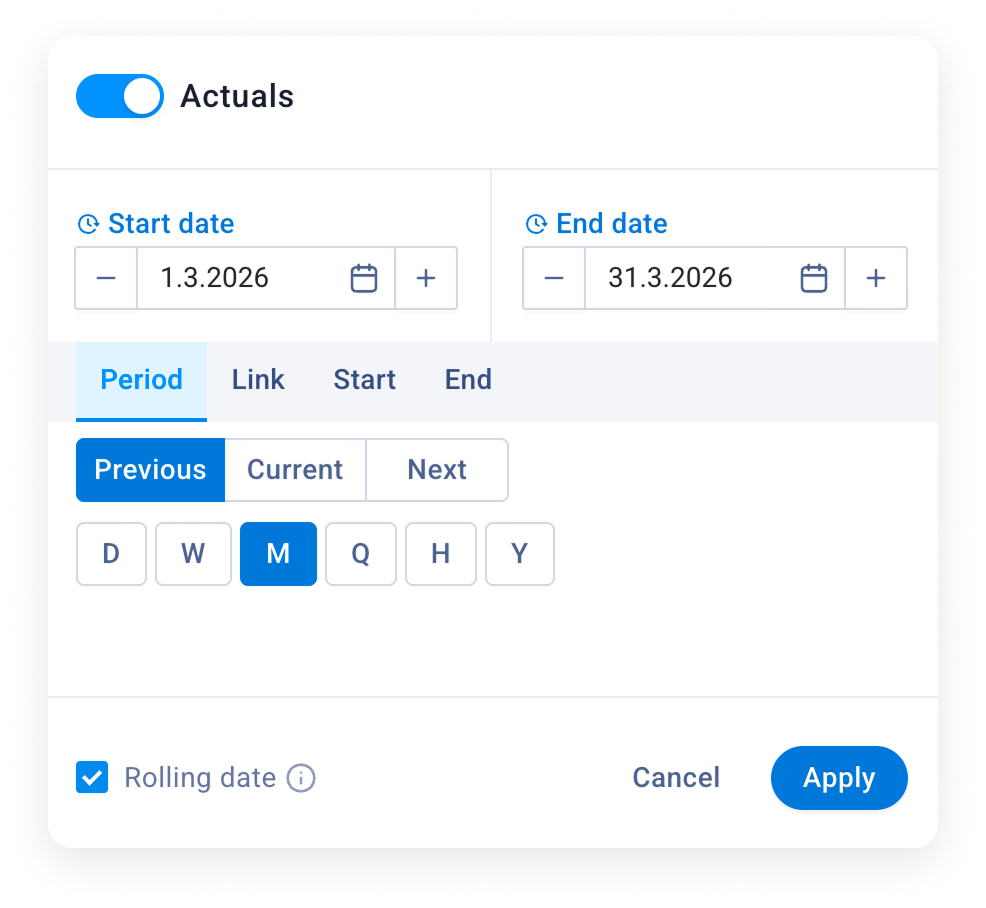
The tabs in the middle of the picker set the dates for you:- Period sets both the start and the end date. Choose Previous, Current or Next, then the length: D (day), W (week), M (month), Q (quarter), H (half-year) or Y (year). Under Current you also find T3M, T6M and TTM (trailing 3, 6 and 12 months) and YTD (year to date)
- Start sets only the start date, for example the start of the previous quarter
- End sets only the end date, for example the end of the previous month
- Link ties the dates to the other ledger, see Link budget dates to actuals
Rolling dates
When you use a preset, the Rolling date checkbox at the bottom of the picker is selected and a clock icon appears next to the date. Rolling dates move automatically with today’s date. For example, with Previous and M, the report always shows the previous month. When a new month starts, the report moves forward by itself. To use fixed dates instead, clear the Rolling date checkbox and click Apply. The dates stay as they are now and no longer move.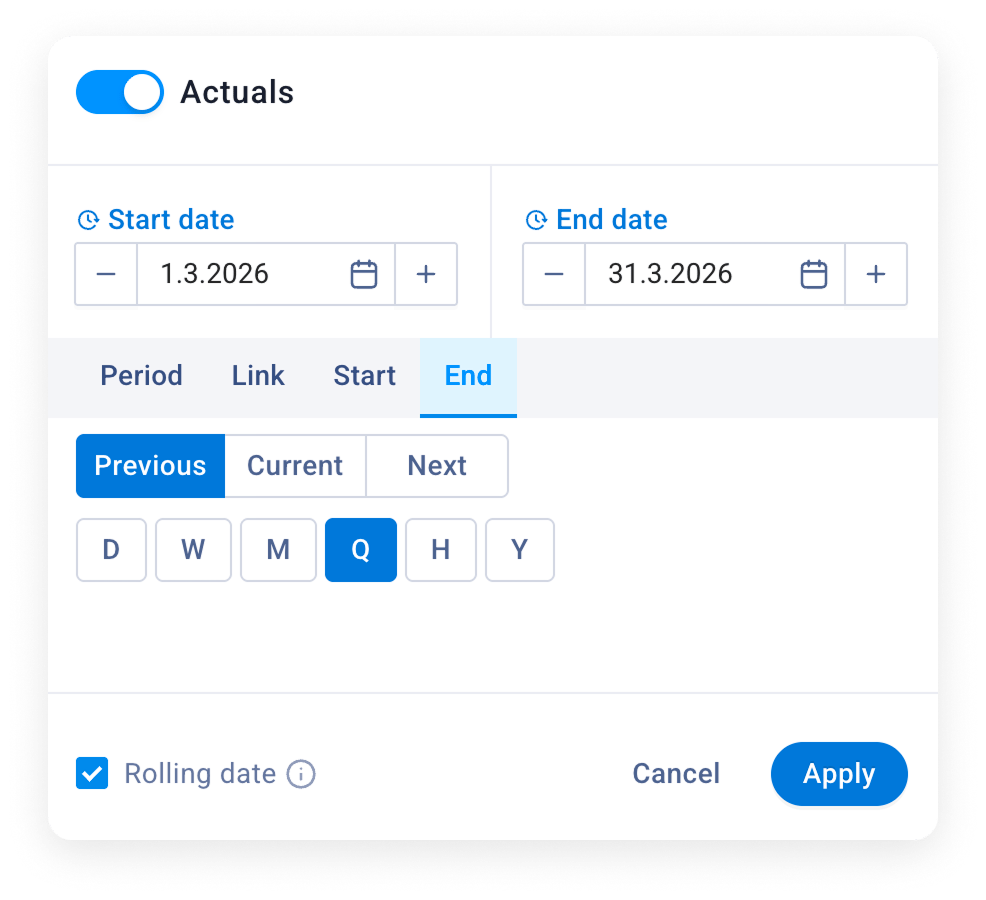
Link budget dates to actuals
You can tie the budget dates to the actuals dates, so the two always fit together.- Full link: on the Link tab, choose Actuals. The budget then uses exactly the same dates as actuals. This is useful for budget vs. actuals comparisons
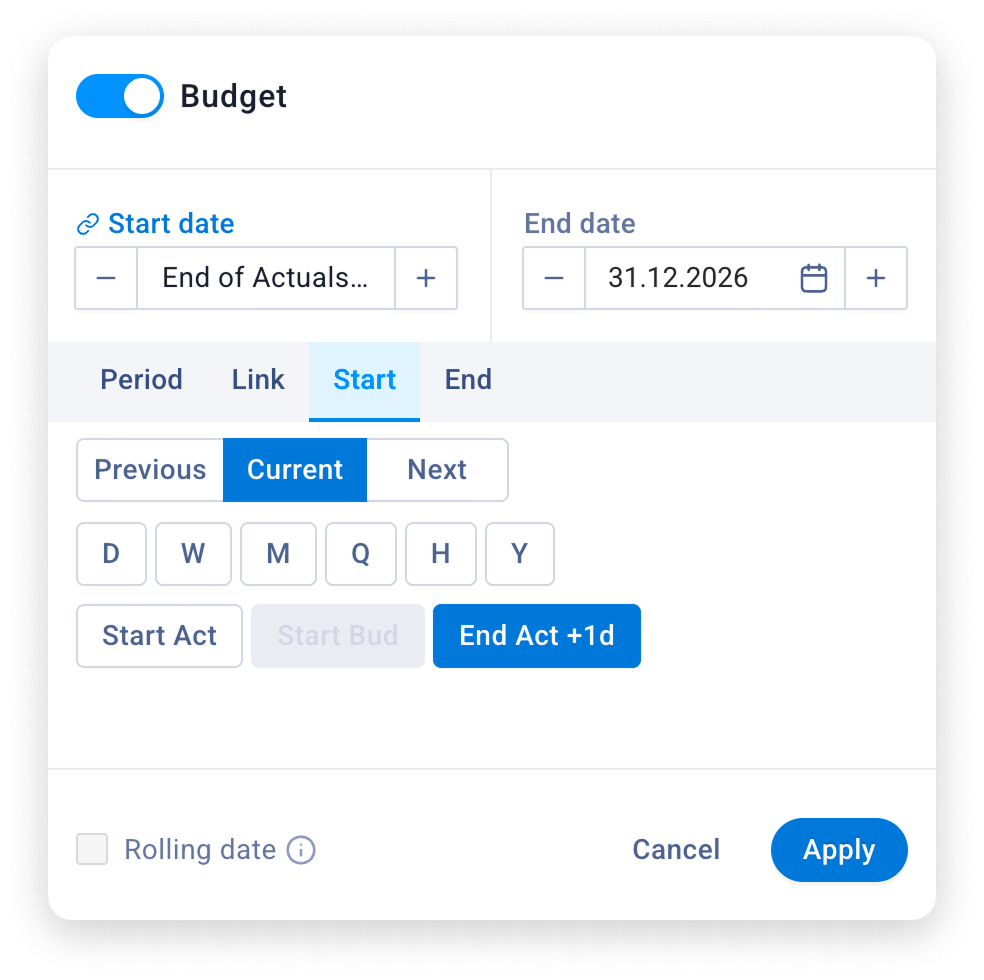
- Partial link: on the Start tab, Start Act starts the budget where actuals start, and End Act +1d starts the budget the day after actuals end. On the End tab, End Act ends the budget where actuals end
- Set actuals to end at the end of the previous month, with Rolling date selected.
- Open the Bud picker and, on the Start tab, choose End Act +1d.
- On the End tab, choose for example Current and Y to end the forecast at the end of the current year.
- Click Apply.