
Quick guide
The video below gives a short walkthrough of the SaaS report template. It was recorded in an earlier version of Caleido, so some buttons look different. The steps below match the current version.Example: SaaS P&L
The SaaS P&L template gives you a functional view of the company’s profitability and cash flow:- EBITDA as the key profitability metric
- Revenue split into:
- Recurring revenue (MRR)
- Non-recurring revenue (for example onboarding fees)
- Operating expenses grouped by function:
- Research and development (R&D)
- General and administrative (G&A)
- Sales and marketing (S&M)
- Cash flow and cash position at the end of the report
Preview templates in the Library page
The Library page lists every report template and saved chart so you can preview them before using them.- Open the Library page as a workbook tab: in a workbook, click + (Add tab) at the end of the tab bar, go to the Views tab, select Library and click Apply.
- In the left panel, choose Report templates or Charts.
- Use Search report templates to find a template, or browse the list. Templates are grouped under:
- Shared: report templates your organization has created
- Library: Caleido’s ready-made best practice templates
- Click a template to preview it on the right.
Add a template to a workbook
You add a report template to a workbook as a new tab.- Open the workbook.
- Click + (Add tab) at the end of the tab bar.
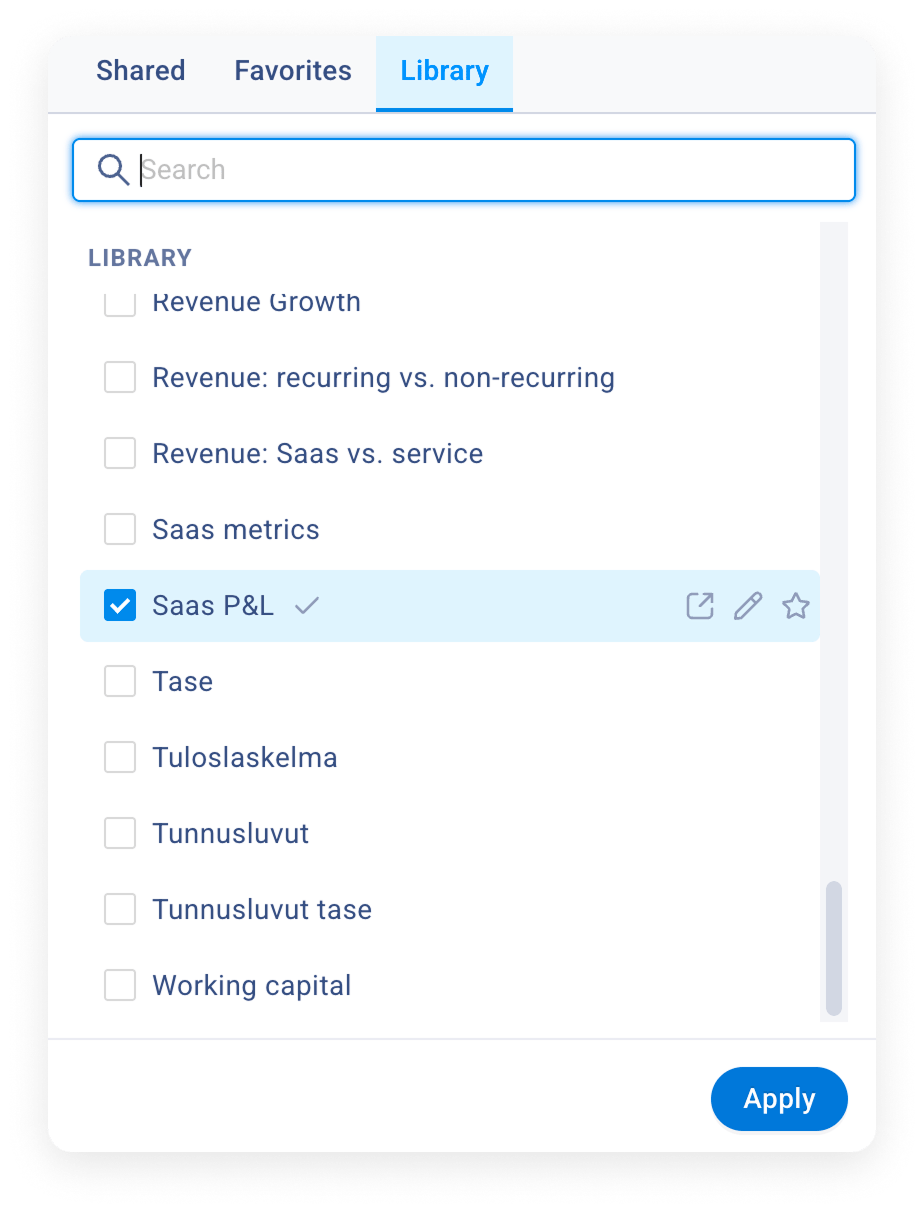
- Go to the Library tab. Shared lists your organization’s own templates and Favorites the ones you have starred.
- Find the template, for example SaaS P&L, by browsing or with the search field.
- Select the checkbox next to the template. You can select several templates at once.
- Click Apply.
Add comparison columns
Library templates work well with column presets. To compare actuals with the same period last year:- On the report, click the Columns: dropdown in the report’s top bar.
- Go to the Library tab.
- Select a comparison preset, for example one that compares actuals with the previous year.