Quick guide
The video below walks you through the basic column settings. It was recorded in an earlier version of Caleido, so the way you open the settings looks different. The settings themselves work the same way.Choose a column preset
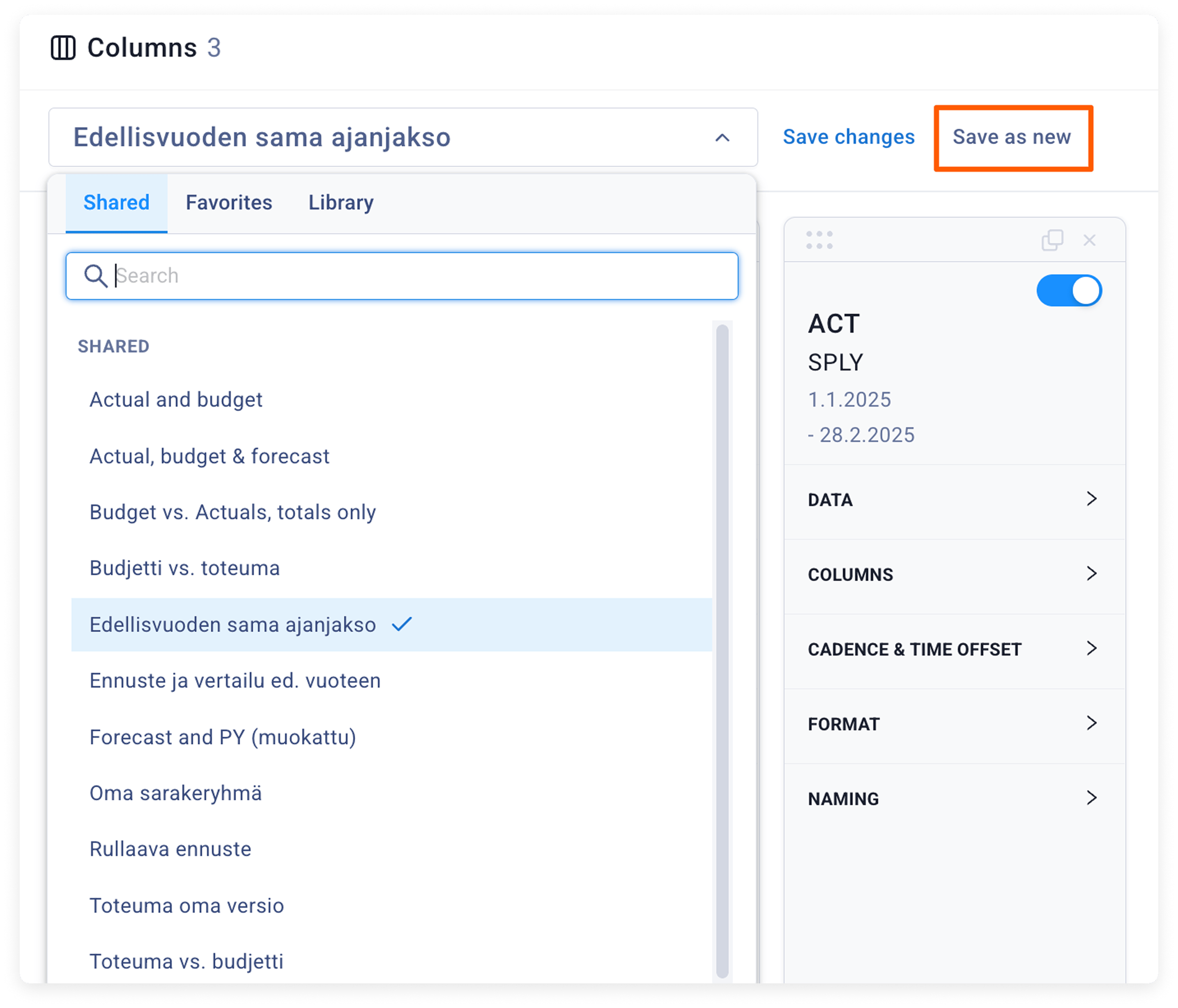
- In the report’s top bar, click the Columns: dropdown. It shows the preset in use, or Select preset if the columns have been set by hand.
- Pick a preset. The tabs group them:
- All: every preset
- Shared: presets saved in your organization
- Favorites: presets you have starred
- Library: Caleido’s ready-made presets
- The report updates right away.
Open the column settings
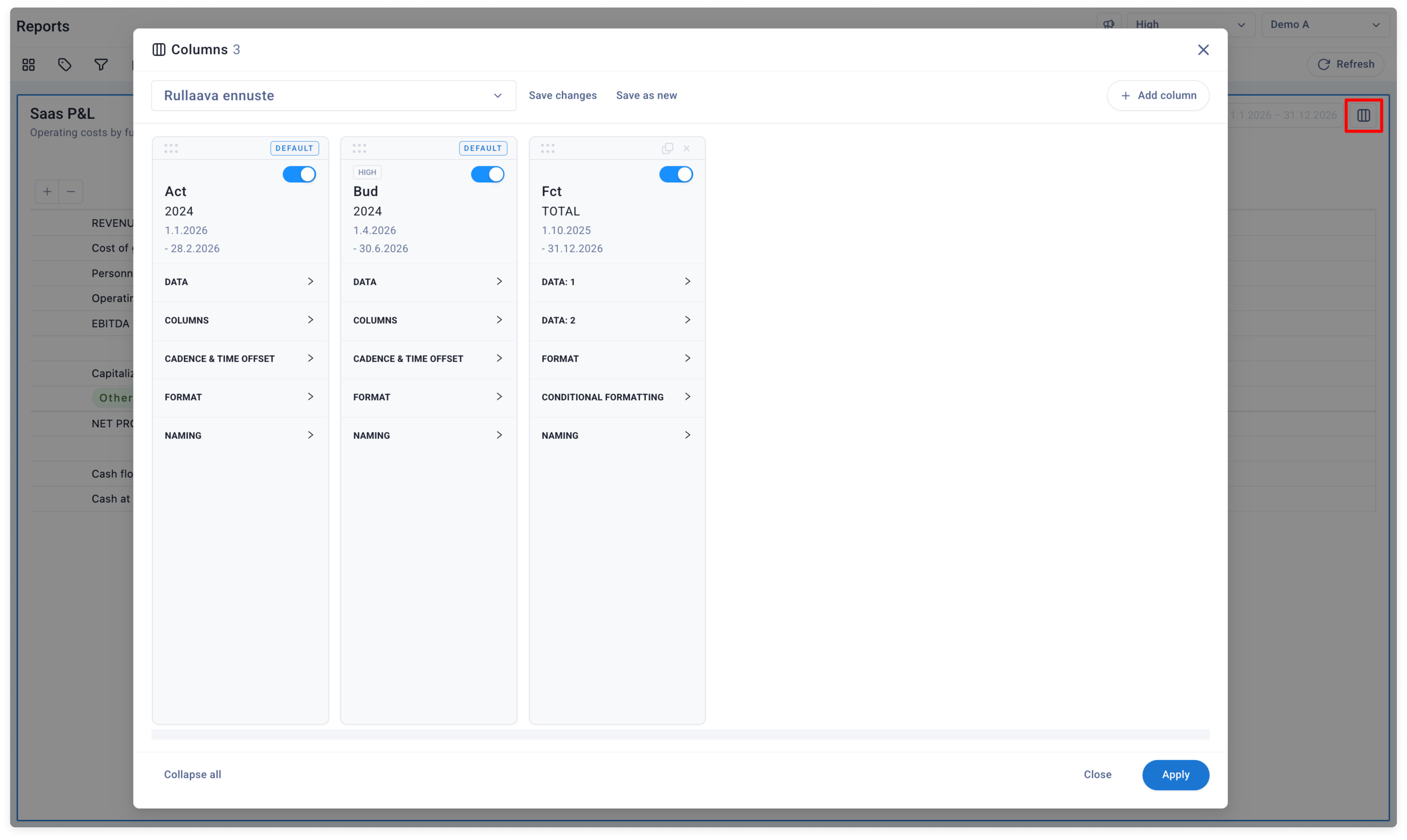
Open the Columns settings in either of these ways:- Click the Columns: dropdown and then Column settings at the bottom of the list
- Click Actions, then Configure > Columns…. In a workbook, the Actions button is at the top right of the page
Add and arrange columns
- Click Add column to add one or more columns. Columns are grouped by type, for example Ledger, Variance and Change
- Use the switch on each card to show or hide that column group
- Drag a card by its handle to change the column order
- Use the copy icon to Duplicate a card, or the cross to Remove it
- Collapse all and Expand all at the bottom left close or open all sections on the cards
Column card settings
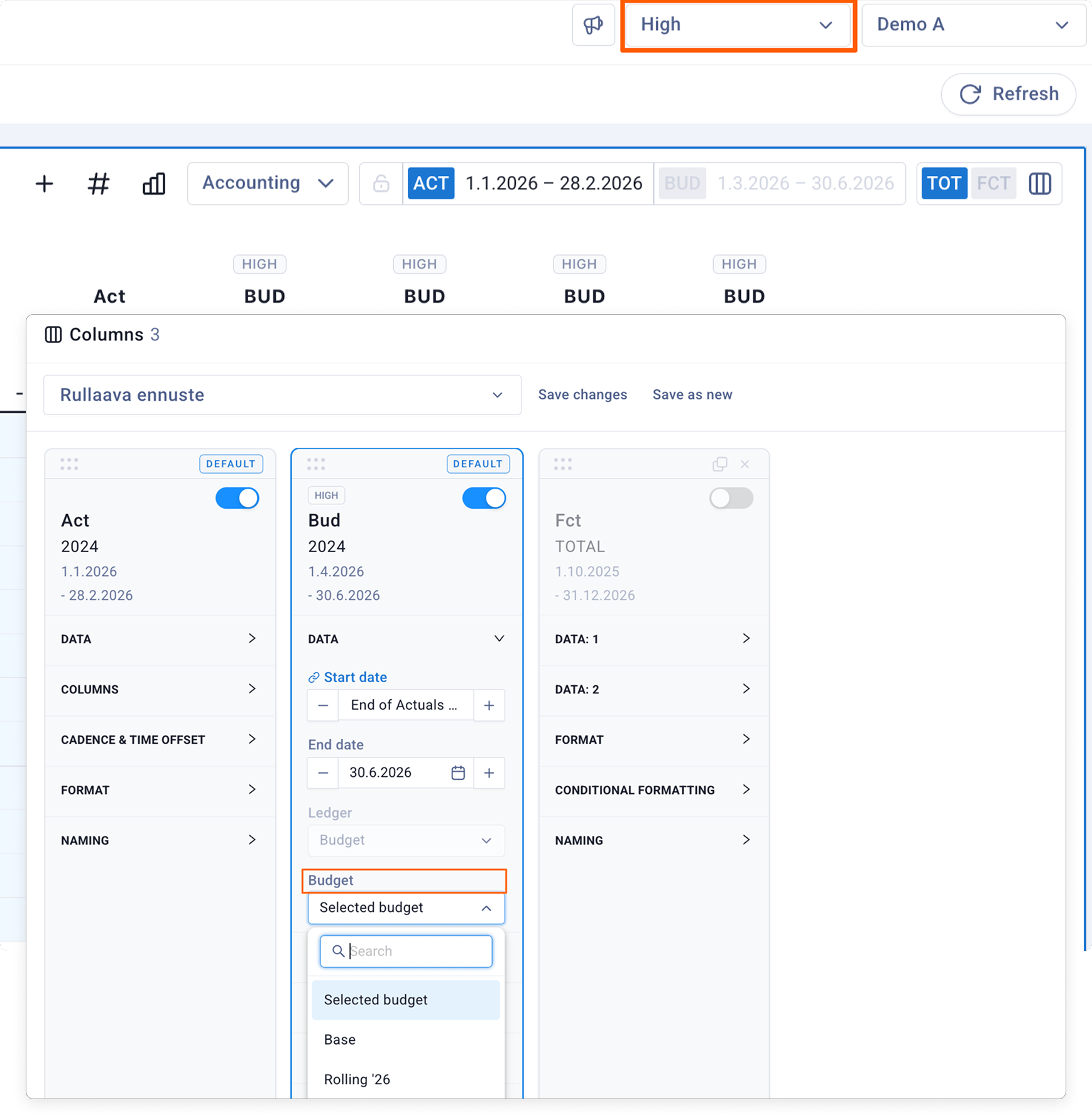
Each card has collapsible sections. Which sections you see depends on the column type.Data
- Start date and End date set the column’s date range. They work like the report date picker, see Set the report date range
- Ledger defines where the column’s data comes from, for example Actuals or Budget. You can’t change the ledger of the default columns
- Budget defines which budget a budget column shows. The default Selected budget follows the budget selected for the report. Choosing another budget overrides it
Columns
- Display: switch Series (one column per period) and Total (one total column) on or off. At least one must stay on
- Series layout: how the series of several column groups is laid out, Consecutive or Side-by-side
- Break down by: split the column by a dimension, for example one column per cost center
- Opening balances: include opening balances in balance sheet columns
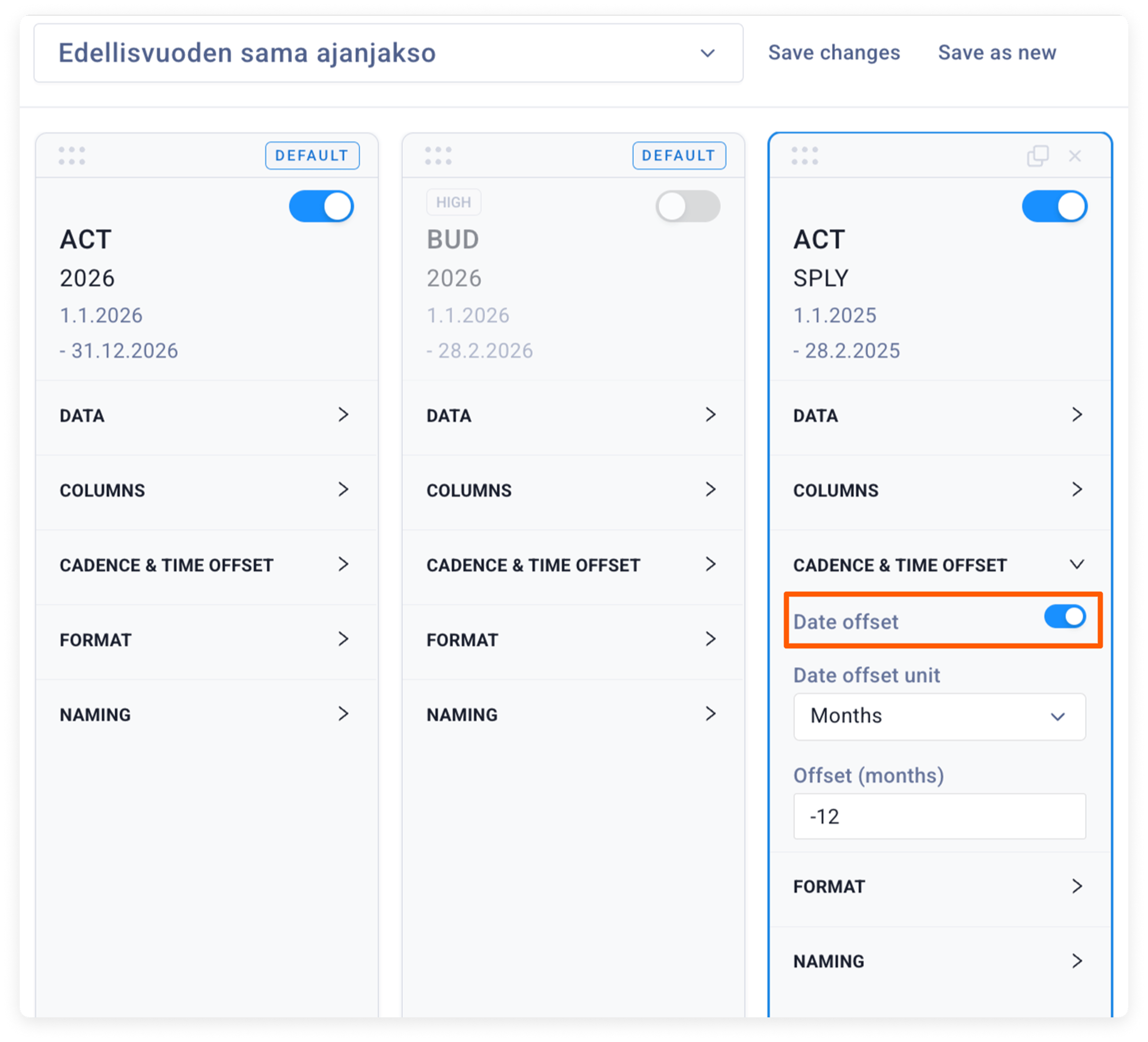
Cadence & time offset
- Cadence is the length of each period in the series: Week, Month, Quarter, Half-year or Year
- Cadence source makes the column follow the cadence of the actuals (ACT) or budget (BUD) columns instead
- Date offset shifts the column’s dates. When you switch it on, choose the Date offset unit (for example Months) and the Offset, for example -12 to show the same period last year
Format
- Bold: show the numbers in bold
- Border: add a border line on the Left, Right or Both sides
- Background and Total background: pick a color for the series and total columns. Reset removes the color
- Fill header and Color only in header: control how the color is applied to the column header
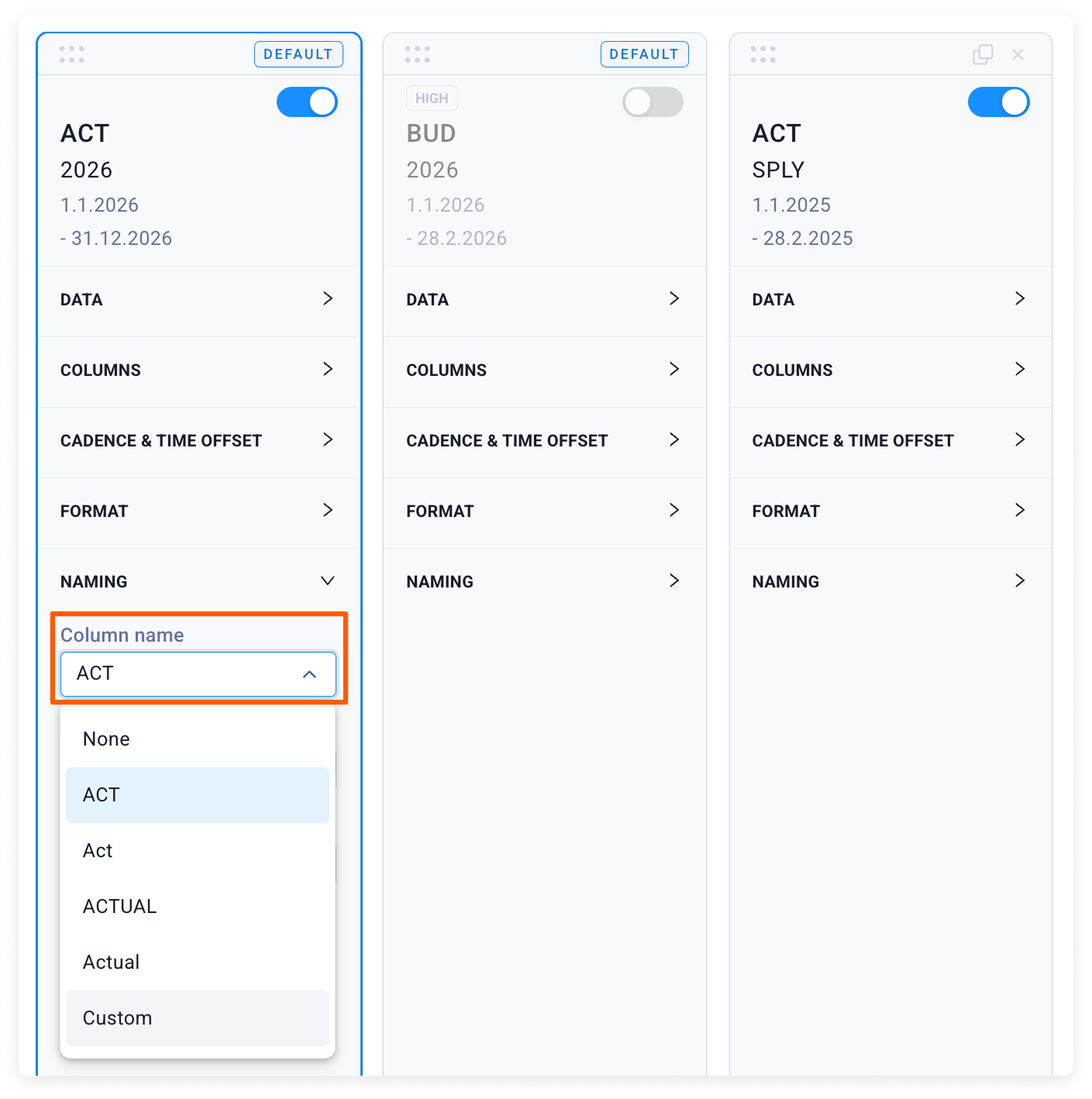
Naming
- Column name: choose the column header from the preset names or type your own with Custom
- Total label: the name of the total column
- Ledger name: for example ACT, Act or Actuals
Apply the columns
Click Apply at the bottom of the settings. The columns update on the report.Save the columns as a preset
Use the buttons next to the preset dropdown at the top of the settings:- Save as new saves the current columns as a new preset. Give it a name and confirm
- Save changes updates the selected preset, if you have changed it and have permission to edit it
- Create new starts a new preset from the default columns